How to Scan Receipts for Your Accountant: Apps, File Names and What to Do With the Paper
A paper receipt you never scanned is a receipt you will lose. Here is how to scan receipts with your phone so your accountant can actually use them, how to name and file them, and when it is safe to get rid of the paper.
Why scan receipts at all?
Scanning receipts is the simplest way to make sure no business expense gets lost before it reaches your accountant. Fuel, lunch with a client, a cable from the hardware store: paper receipts end up in pockets, wallets and car door pockets, and by tax time half of them are missing. Every missing receipt is a deductible expense you cannot claim, which means tax you pay for no reason.
Clean scans also save your accountant time. Instead of a shoebox once a year, they get legible files with clear names, sorted by month. That means fewer questions, fewer mistakes and, if they bill by the hour, a smaller bill. Not sure which expenses are worth keeping? Start with our guide to deductible business expenses.
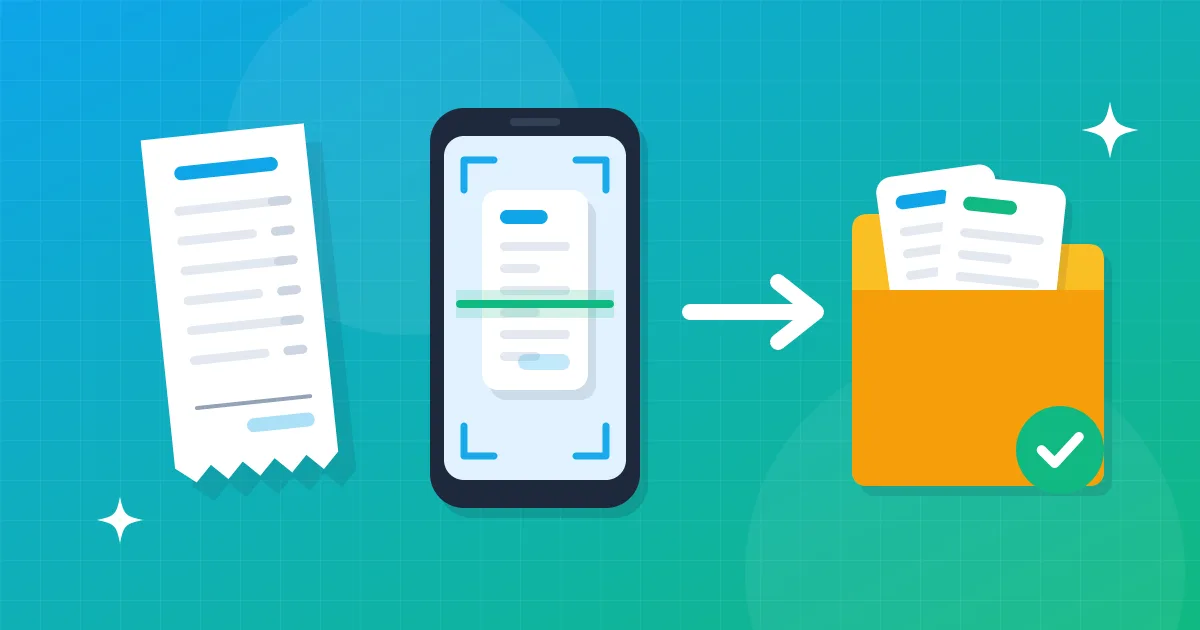
How to scan a receipt with your phone in 6 steps
- Use a scanning app, not the camera. Scanner modes (Google Drive, the iPhone Files and Notes apps, Microsoft Lens, Adobe Scan) straighten the page, crop the background and save a PDF.
- Lay the receipt flat on a dark surface in good light, without your phone's shadow on it. Smooth out creases first.
- Check that everything is readable: business name, tax or VAT number, date, total and tax amount. If the back has information, scan it too.
- Keep multi-page invoices in one file, not three separate images.
- Name the file right away using a fixed pattern (next section).
- Move it to your shared folder in the cloud, the same place your email invoices go, not just your phone.
Most till receipts are printed on thermal paper, and the print fades within months, faster in a hot car. Do not wait for the end of the month: scan on the day you get them.
How to name and organize scanned receipts
The file name matters almost as much as the scan. Nobody knows what `IMG_4821.pdf` is. A simple pattern that works everywhere: date – vendor – amount.
- File name: `2026-11-03_shell_48.50.pdf` or `2026-11-03_office-depot_189.pdf`. Dates in year-month-day order sort correctly.
- Folders: one per year, with a subfolder per month: `2026/11`.
- Income and expenses separately, if you send your accountant both.
- One place only. Not some in WhatsApp, some in the camera roll and some in email. Multiple sources are the main cause of duplicate invoices and gaps.
With a structure like this, sending documents to your accountant takes minutes: zip the month's folder and send it. How to put together the bundle itself, with a summary sheet, is covered in how to send invoices to your accountant.
Can you throw away receipts after scanning them?
Often yes, but not automatically. Many tax authorities, including the IRS in the US and HMRC in the UK, accept electronic copies as long as they are complete, legible and can be retrieved for the whole retention period. Some countries add conditions for scanned paper, for example approved scanning software or a documented process. Israel, for instance, only lets a scan replace the paper original when it meets the Tax Authority's rules for computerized scanning.
- Until your accountant confirms, keep the paper in one envelope per month with the month written on it. It takes almost no space.
- An invoice that arrived as a PDF by email is usually already the original. Do not print and rescan it, just keep the file.
- How long to keep them? Usually several years, depending on the country. See how long to keep invoices and receipts.
Rules on scanned records change and have technical details. Confirm your method with your accountant or tax advisor before you shred originals.
Most invoices never need scanning
For most freelancers and small businesses, paper receipts are the minority. Phone and utility bills, software subscriptions, Google and Meta ads, suppliers and online purchases arrive as a PDF or a download link by email. You do not scan those. You only need to collect them into the same folder as your scanned receipts.
That is where most people get stuck: invoices are spread across hundreds of emails, some attached and some behind a download link. You can find them manually with the ready-made searches in our guide to finding invoices in your email, or let Inbox Invoices do it: the tool scans your Gmail in your browser, flags messages that look like invoices and receipts, spots duplicates and downloads everything as one organized ZIP with a CSV, ready to sit next to your scanned receipts. You can connect your inbox and start a free scan.
A 10-minute weekly routine
- Once a week: empty your wallet and car of receipts and scan them.
- Name the files and move them into the month's folder.
- Put the paper in the month's envelope.
- Once a month: collect your email invoices into the same folder.
- Check for duplicates between scans and email, then send the month to your accountant.
This fits neatly into a monthly bookkeeping routine, and at year end everything for your annual tax return is already in one place.
Common receipt scanning mistakes
- Crooked or cropped photos where the total or tax number is unreadable.
- Keeping scans only in the camera roll, with no backup. A lost phone takes a year of receipts with it.
- Waiting until tax season, when the thermal paper has already faded.
- Printing and scanning an email invoice, which creates a duplicate.
- Shredding originals without checking that your scans meet the rules.
Summary
Scanning receipts is a few minutes a week that saves money, time and questions from your accountant. Scan on the day with a scanning app, give every file the same kind of name, keep everything in one cloud folder, and hold on to the paper until your accountant confirms you can let it go. Invoices that arrived by email do not need scanning at all, only collecting.
Want to skip the manual search?
Inbox Invoices scans your Gmail, finds invoices and receipts, and downloads them as one ZIP file. Free, no password, and your emails are never stored.
Find my invoicesFAQ
What is the best app to scan receipts?
Any app that produces a straight, sharp PDF is enough: the scanner in Google Drive, the iPhone Files or Notes app, Microsoft Lens or Adobe Scan. What matters is that the result is legible and saved to the cloud.
Can I throw away receipts after scanning them?
In many countries yes, if the scan is complete, legible and kept for the full retention period, but some tax authorities have extra conditions for scanned paper. Check with your accountant before you shred originals.
Do I need to scan invoices I received by email?
No. An invoice that arrived as a PDF is usually the original. Save the original file in your folder instead of printing and scanning it.
What can I do with a faded receipt?
Try scanning it in strong light with high contrast. If that fails, ask the business for a copy or use your card statement, and ask your accountant how to document the expense.
What format should scanned receipts be in for my accountant?
PDF is the standard. A file name with date, vendor and amount, plus one folder per month, lets your accountant work without opening every file.
How often should I scan receipts?
Ideally the same day, and at least once a week. That way the paper does not fade and receipts do not get forgotten in your wallet or car.
Next guide
How to Find All Invoices and Receipts in Your Email (Gmail and Outlook)
Your invoices are already in your inbox. Here is how to pull every one of them out of Gmail or Outlook with a few smart searches, and get them ready for your accountant.